 Koen Heye Blog
Practical SitecoreAI Extensions, part 3: Atlassian Confluence

🎄 This is part 3 of 3 of a proof of concept I wrote for the Sitecore Community Advent Calendar 2025, where it was published as one post on 15 December 2025.
This series:
- Part 1: Google PageSpeed Insights
- Part 2: Mouseflow
- Part 3: Atlassian Confluence (this post)
In part 1 I introduced the Sitecore Marketplace and built a Google PageSpeed dashboard widget, and in part 2 a Mouseflow one. This last part brings Atlassian Confluence documentation into the SitecoreAI Pages editor.
Atlassian Confluence
Alright, how about this beautiful use-case. Our client keeps documentation in Confluence for all their internal applications. And are using it to explain the usage of Sitecore and their very business specific components and fields.
What if we can integrate Confluence inside of the SitecoreAI Pages editor? You can directly get feedback on the component, get information on use-cases or best practises inside of SitecoreAI.
For this integration we'll need 2 major things:
- get information on a component from Sitecore
- use that information to call Atlassian API's to fetch page links or even page content from a specific Confluence environment.
Get component information
I really wanted to have an integration point inside of a selected component rendering. But currently there is no extension point available to add this functionality. Perhaps the ability to add an additional pill next to Content & Design called Documentation could be a solution.
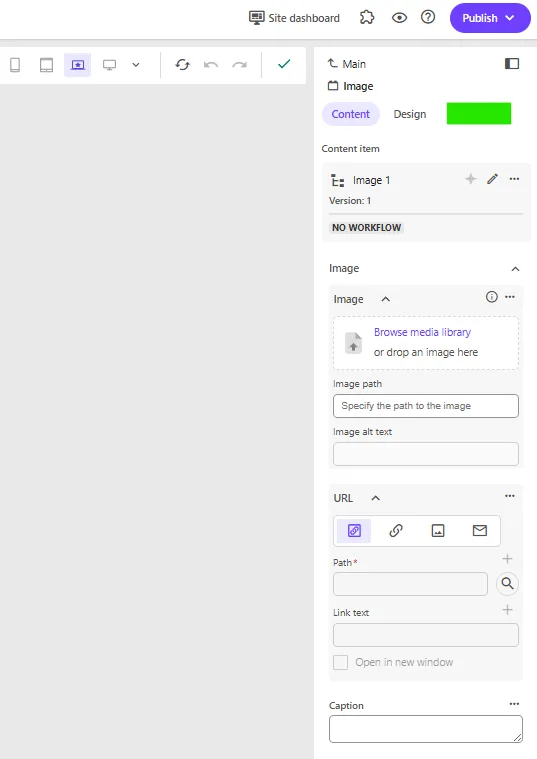
But then again, the space in general on the right-side panel is rather limited. Maybe its better to use the extension point for page builder content panel.
The other existing option - to use a custom field - would make the template setup overly complex and would use redundant fields only needed for the Pages. So that is a no-go.
Step 0: Extension point starter
We'll start from the integration point that lists data inside of a page context panel: pages-contextpanel-extension. Which currently lists Application context and Pages context data.
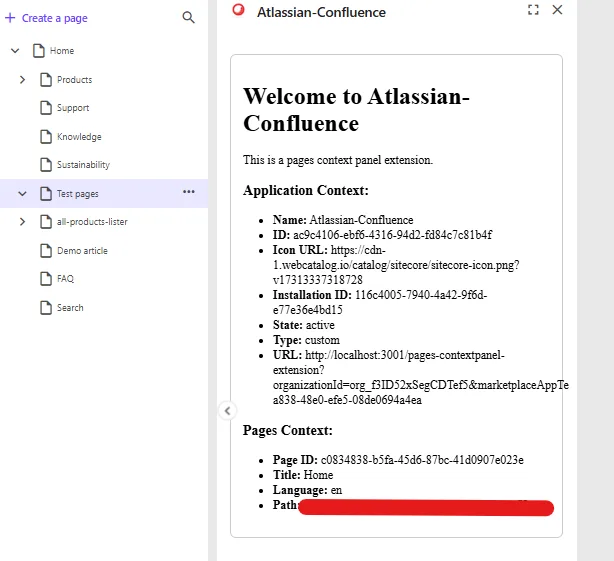
Step 1: Get the layout details from the PageContext
Easy, you have the pages context, you can get the presentation details and know all the components that this page will render.
<li><strong>PresentationDetails:</strong> {pagesContext.pageInfo?.presentationDetails}</li>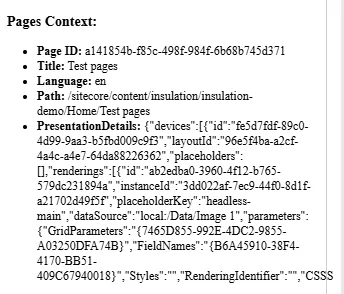
You can also find the presentation details in the console. Since the starter kit logs the full object.
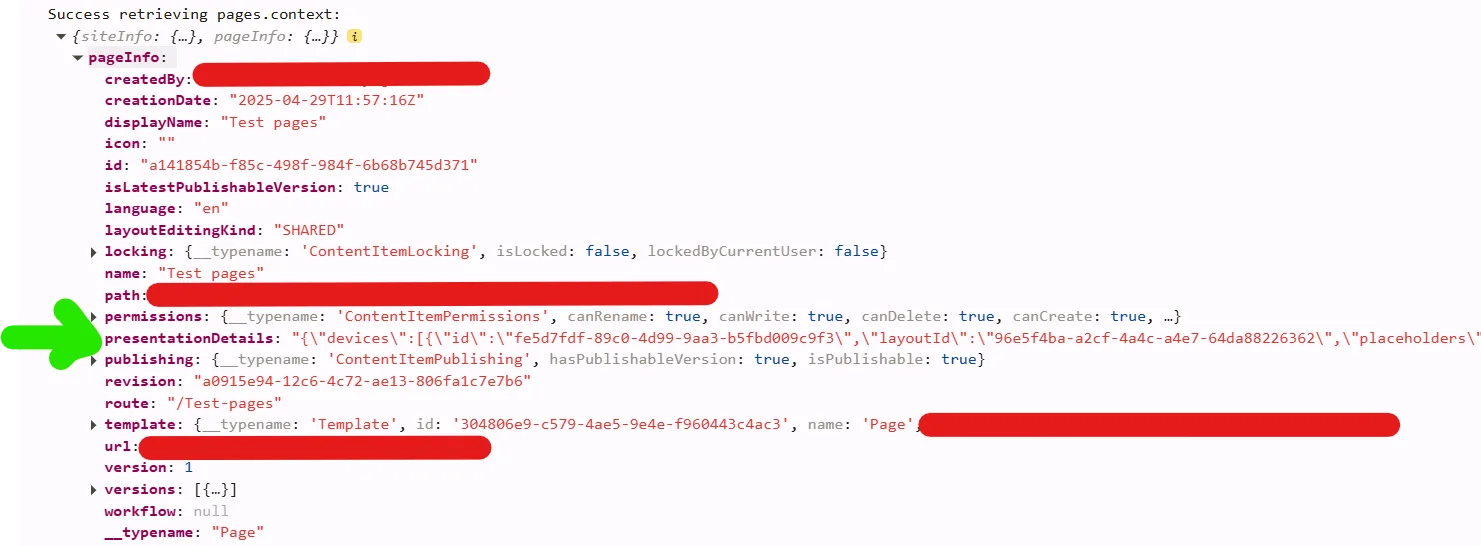
Step 2: Filter out rendering ids
So we have our presentation details, lets get all the unique rendering ids from the page.
I created a util class which receives the pagePresentationDetails, parses it and creates a flat list of rendering ids.
// utils/xmcloud/getUniqueRenderingIds.ts
export const getUniqueRenderingIds = (pagePresentationDetails: any): string[] => {
  const jsonPagePresentationDetails = JSON.parse(pagePresentationDetails);
  const renderings = jsonPagePresentationDetails?.devices?.flatMap((device: any) => device.renderings || []);
  //Use Set to get unique values
  return Array.from(new Set(renderings?.map((r: any) => r.id)));
};
Possible optimizations: only fetch renderings from specific placeholders or exclude some renderings with specific paths.
Changes made to the page.tsx file:
// add import of util
import { getUniqueRenderingIds } from "@/src/utils/xmcloud/getUniqueRenderingIds";

...
// define constant in: function PagesContextPanel()
const [renderings, setRenderings] = useState<string[]>();

...
// in useEffect() after the setPagesContext, call the getUniqueRenderingIds function.
setPagesContext(res);

// get renderingids from the presentationdetails          setRenderings(getUniqueRenderingIds(res.pageInfo?.presentationDetails));
And to see something visual, I added this section:
<div className="renderings">
  <h3>Renderings:</h3>
  <ul>
  {
    renderings?.map((item) => <li key={item}>{item}</li>)
  }
  </ul>
</div>
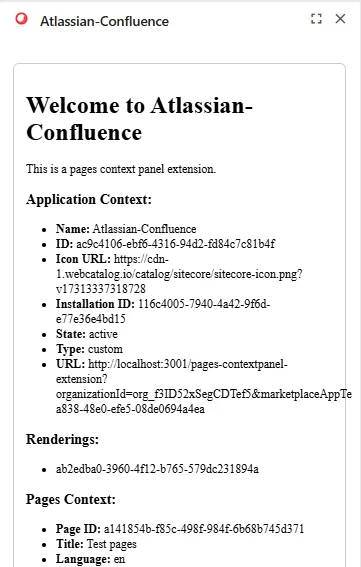
Above code, will then transform the presentation details to something useful.
{
	"devices": [{
			"id": "fe5d7fdf-89c0-4d99-9aa3-b5fbd009c9f3",
			"layoutId": "96e5f4ba-a2cf-4a4c-a4e7-64da88226362",
			"placeholders": [],
			"renderings": [{
					"id": "ab2edba0-3960-4f12-b765-579dc231894a",
					"instanceId": "3dd022af-7ec9-44f0-8d1f-a21702d49f5f",
					"placeholderKey": "headless-main",
					"dataSource": "local:/Data/Image 1",
					"parameters": {
						"GridParameters": "{7465D855-992E-4DC2-9855-A03250DFA74B}",
						"FieldNames": "{B6A45910-38F4-4170-BB51-409C67940018}",
						"Styles": "",
						"RenderingIdentifier": "",
						"CSSStyles": "",
						"DynamicPlaceholderId": "1"
					}
				}
			]
		}
	]
}
Result for the json above:
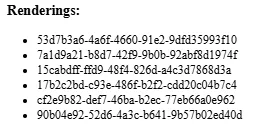
Or when you have more renderings on a page, the list can look like this:
Step 3: Use ClientSDK to fetch component information
Now that we have our rendering id, lets call the SitecoreAI Authoring api to fetch more info about the component. I need the name of the Sitecore Component to be able to call Atlassian to get a page.
We do this by leveraging the GraphQL ClientSDK.
The advantage of a Marketplace app, is that you can use the Marketplace SDK without explicitly authenticating. Since you are running the app inside SitecoreAI itself. This makes it a lot easier to just utilize the SDK and the available functionalities that SitecoreAI bring.
Make queries to the Authoring and Management GraphQL API to manage Sitecore content directly from your Marketplace app.
Add utility class to fetch data
I created the file: utils/authoring-client-sdk/fetchItemData.ts
It's job is clear, we call the Authoring api to get data from Sitecore.
This file contains 2 major items:
- buildGraphQlGetItemQuery, feed it the itemId to set it in the query. You can tweak the fields you want to receive as well.
- fetchSitecoreRenderingName function, which received the itemId, clientSDK and appContext.
import { ClientSDK } from "@sitecore-marketplace-sdk/client";

//test
const graphQLQuery = {
  query: `query { sites { name } }`,
};

function buildGraphQLGetItemQuery(itemId: string): { query: string } {
  return {
    query: `query {
      item(
        where: {
          database: "master",
          itemId: "${itemId}"
        }
      ) {
        itemId
        name
        path
        fields(ownFields: true, excludeStandardFields: true) {
          nodes {
            name
            value
          }
        }
      }
    }`,
  };
}

export async function fetchSitecoreRenderingName(
  itemId: string | null,
  client: ClientSDK | null,
  appContext: any
): Promise<any | null> {
  const sitecoreContextId = appContext?.resourceAccess?.[0]?.context?.preview;

  if (!sitecoreContextId) {
    console.error("Sitecore Context ID not found in application context. Make sure your app is configured to use XM Cloud APIs.");
    return null;
  }

  if (!itemId || !client) {
    console.error("Missing itemId for GraphQL query.");
    return null;
  }

  if (!client) {
    console.error("Missing client for GraphQL query.");
    return null;
  }

  const graphQLQuery = buildGraphQLGetItemQuery(itemId);

  try {
    const response = await client?.mutate("xmc.authoring.graphql", {
      params: {
        query: { sitecoreContextId },
        body: graphQLQuery,
      },
    });

    console.log("GraphQL called", response);
    return response.data?.data?.item;
  } catch (error) {
    console.error("GraphQL query failed:", error);
    return null;
  }
}
Call utility class to fetch rendering name
I had defined a string array first for the renderings. And changed this to an interface first. File: interfaces/pageComponents.ts
export interface PageComponent {
    id: string;
    name?: string;
}
Further changes made to the page.tsx file
- hasFetchedNames to prevent calling api constantly, use a boolean to indicate we've already fetched what we need
- we use a Promise.all on pageComponents to loop them all and to update the values after every single fetchSitecoreRenderingName completed.
  const [pageComponents, setPageComponents] = useState<PageComponent[]>(); //renamed from renderings
  const [hasFetchedNames, setHasFetchedNames] = useState(false);

// Call fetchSitecoreRenderingName when both contexts are ready
  useEffect(() => {
    if (client && appContext && pagesContext && pageComponents?.length && !hasFetchedNames) {
      Promise.all(
        pageComponents.map(async (pageComponent) => {
          try {
            const item = await fetchSitecoreRenderingName(pageComponent.id, client, appContext);
            return { ...pageComponent, name: item.name };
          } catch (err) {
            console.error("Error fetching rendering name:", err);
            return pageComponent; // fallback to original if error
          }
        })
      ).then((updatedComponents) => {
        setHasFetchedNames(true); // prevent from getting in endless loop and keep calling the fetch method
        setPageComponents(updatedComponents); // update the pageComponents array with new values that include name
      });
    }
  }, [client, appContext, pagesContext, pageComponents]);
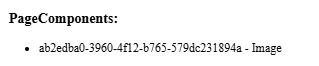
I also updated the html output, which now reflects the component name as well.
<div className="page-components">
  <h3>PageComponents:</h3>
  <ul>
  {
    pageComponents?.map((item) => <li key={item.id}>{item.id} - {item.name ?? "unknown"}</li>)
  }
  </ul>
</div>
Result:
Step 4: Implement a call to the Atlassian Confluence API
Now comes the fun part, we want to fetch content from Atlassian and show it in SitecoreAI.
Atlassian preparation - create API token
There are multiple ways to authenticate with Atlassian. I created an API token with full scope. Tried first with limited scope but had too many issues when calling the API through Postman myself.
So, create an API token: https://id.atlassian.com/manage-profile/security/api-tokens Name of my token: sitecore_xmcloud_full
Remember of converting your api token to base64 as described in the documentation.
Drawback: api tokens expire and will need to be renewed. A better option could be to use user authentication.
Again, this is meant to be a proof of concept. I want to show data from Atlassian Confluence in Sitecore. And the focus was on this integration. I intentionally created some dependencies
Server route to call Atlassian Confluence API
We define a server route which can call the Atlassian API:
// src/app/api/confluence/route.ts
import { NextRequest } from 'next/server';

export async function GET(req: NextRequest) {
  const pageTitle = req.nextUrl.searchParams.get('pageTitle'); // https://stackoverflow.com/questions/70272983/how-do-i-get-query-string-params-in-nextjs-middleware
  //console.log(pageTitle);
  const username = "your-email";
  const password = "your-base64-api-token";
  const api_endpoint = `https://your-domain.atlassian.net/wiki/api/v2/pages?body-format=storage&title=${encodeURIComponent(pageTitle ?? "")}`;
  //warning: we're currently looking for an EXACT match
  const auth = Buffer.from(`${username}:${password}`).toString('base64');

  try {
    const res = await fetch(`${api_endpoint}`, {
      headers: {
        Authorization: `Basic ${auth}`,
        Accept: "application/json",
      },
    });

    if (!res.ok) throw new Error('Atlassian API error');

    const data = await res.json();

    //console.log(data);

    return new Response(JSON.stringify(data), { status: 200 });
  } catch (err) {
    return new Response(JSON.stringify({ error: 'Failed to fetch page data' }), { status: 500 });
  }
}- console.log is usefull 😄
- be aware that we're looking for an EXACT match to the title
We're leveraging the Confluence REST v2 API: https://developer.atlassian.com/cloud/confluence/rest/v2/api-group-page/#api-pages-get
Changes to the page.tsx
Right now, I just want to dump the response. Let's try to get data from Atlassian on our screen!
Constant to call our server api route:
const handleFetchConfluencePageByTitle = async (title: string) => {
  const response = await fetch(`api/confluence?pageTitle=${encodeURIComponent(title ?? "")}`);
    setConfluencePageData(await response.json());
}
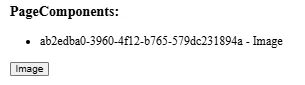
I've modified the PageComponents section, it now also renders buttons. And an onClick event is linked to call the handleFetchConfluencePageByTitle method.
<div className="page-components">
            <h3>PageComponents:</h3>
            <ul>
              {
                pageComponents?.map((item) => <li key={item.id}>{item.id} - {item.name ?? "unknown"}</li>)
              }
            </ul>
            {
              pageComponents?.map((item) => <button key={item.id} onClick={() => handleFetchConfluencePageByTitle(item.name ?? "")}>{item.name}</button>)
            }
          </div>
          <div className="confluence-page-data">
            <h3>Confluence Page Data:</h3>
            <div>
              {
                // just dump everything
                JSON.stringify(confluencePageData)
              }
            </div>
          </div>
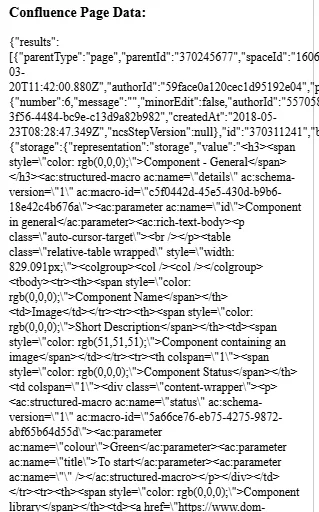
Intermediate result
I know it isn't pretty! But read further, it improves a bit.
And after clicking the button:
Step 5: Your marketplace app - making it prettier
Lets use blok.sitecore.com, the new Product Design Library of Sitecore to visualize data.
Build better products faster Blok is Sitecore's product design system: the UI framework and style guide we use to build great apps. It's publicly available, so that anyone can easily build software in the Sitecore product design language.
blok is based on shadcn, a design system with components that you can customize and extend. Important to know is that shadcn is NOT a component library. It is how you build your component library.
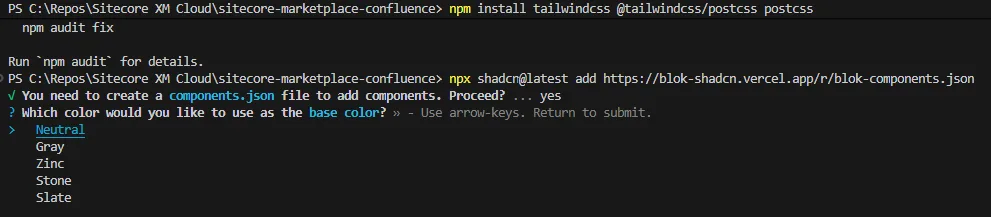
Lets add it to our project. Documentation says to just add this:
npx shadcn@latest add https://blok-shadcn.vercel.app/r/blok-components.jsonBut I got an error saying that Tailwindcss was not installed.

To install tailwind, follow the steps described on the Tailwindcss website. In short:
- npm install tailwindcss #tailwindcss/postcss postcss
- Add postcss.config.mjs
- Add /src/app/globals.css
And of course, you have to import the styling as well. Otherwise your components will just not be styled. And all components that you want to use.
import '/src/app/globals.css'
import { Button } from "@/components/ui/button"
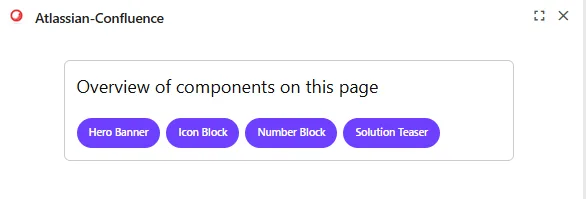
Modify your code to use the shadcn components and your app will be using the look & feel of SitecoreAI. After some further tweaks, I got this result:
Step 6: Atlassian - making it prettier
I was expecting this bit to be easier. I read about react packages being available before starting on this implementation. Alas, I was in uncharted territory and had to improvise to make this implementation work somewhat.
First attempt
We'll start by importing the npm install @atlaskit/renderer. Unfortunately Atlassian supports React 18. While the marketplace app is running 19. https://community.developer.atlassian.com/t/react-19-support-for-atlaskit-components/92166/5
I tried with running --legacy-peer-deps, but I kept getting issues with the package. And couldn't use the renderer component from the @atlaskit module.
npm install @atlaskit/renderer --legacy-peer-depsSecond attempt
I searched the internet for libraries and documentation. But the search call I'm making towards Atlassian will only return the page data in 'storage' or 'atlas_doc_format'. I was not able to convert these formats to HTML.
Third attempt
We can make an additional call towards Confluence. A page specific one which does return html.
GET https://your-domain.atlassian.net/wiki/rest/api/content/{pageId}?expand=body.viewI didn't work this out further. Main reason was time-constraints. I spent already a lot of time getting to this point. Which is why I tested this call in Postman, and included the result directly as a test in my app.
Step 7: Another change - return only data we need
Returning only data you need from the route call.
- created an interface:
interface ConfluencePageSummary {
  id: string;
  title: string;
  webui: string;
}- changed the route.ts to return this data:
function extractConfluencePageSummary(apiResponse: any): ConfluencePageSummary | null {
  const baseUrl = apiResponse._links?.base || "";

  const first = apiResponse.results?.[0];
  if (!first) return null;

  return {
    id: first.id,
    title: first.title,
    webui: `${baseUrl}${first._links?.webui}`,
  };
}- updated the corresponding return statement:
return new Response(JSON.stringify(extractConfluencePageSummary(data)), { status: 200 });- Changes to the page.tsx -> updated handleFetchConfluencePageByTitle
  const handleFetchConfluencePageByTitle = async (title: string) => {
    const response = await fetch(`api/confluence?pageTitle=${encodeURIComponent(title ?? "")}`);
    const data: ConfluencePageSummary = await response.json();
    setConfluencePageData(data);
  }
Atlassian Confluence integration summary
What works:
- I'm listing the components on the page separately
- Details for each component can be fetched and displayed
- Link can be displayed to the documentation page
What doesn't work:
- You can call the confluence page directly to fetch html but I didn't work this out (yet?)
- I was not able to use the Atlassian Document Format library and was not able to render ADF directly (react 18 vs 19 issues).
- Not able to render images of Confluence.
- Custom data structures from Confluence will also not display
- Not able to open links into a new window since the Marketplace integration point is rendered in a frame. And the sandboxed frame doesn't have 'allow-popups' configured. CTRL + Click works however to open the page in a new tab.
What I'd like to improve:
- Add caching. Now we do a call to Sitecore Authoring API for every component. Even when switching page contexts.
- I'm doing an EXACT match between the title and the component name. This isn't always wanted and could be handled differently. Maybe having a fixed structure in the title could be an option. And limiting the search to a dedicated subsection of Confluence.
- Only retrieve fields we need in buildGraphQLGetItemQuery
- Define better scopes for the Atlassian API user.
- Implement the 2nd call to Confluence to fetch HTML data.
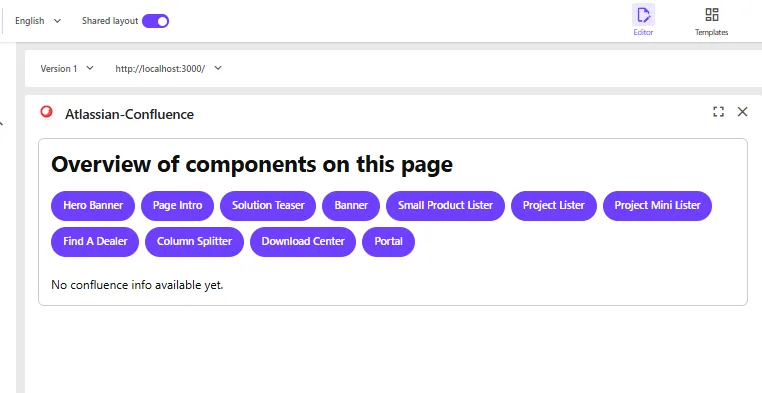 When opening the app on a page
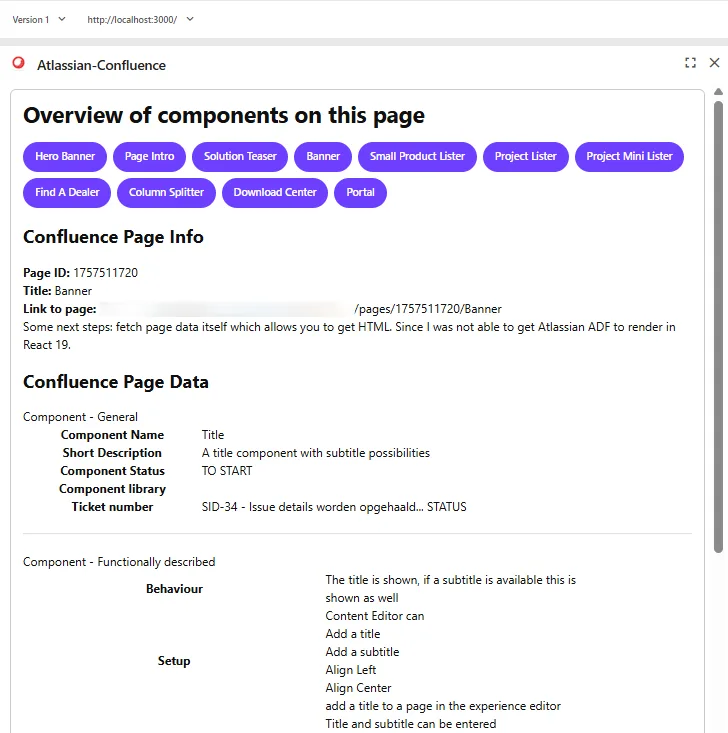 When clicking on a component, you can see info and data
Overall conclusion
The documentation available from Sitecore regarding SitecoreAI applications is great. The Marketplace starter kit is really easy to use. I recommend it to everyone who wants to start with an integration.
I spent more time with investigation API's I want to integrate, getting to know react, styling results than I did with Sitecore.
I would like to see an integration point on a component level or even field level. Which would expand the options for creating enhancements even further.
The code in this blog - as stated earlier - is me trying to get better and learning. I'm sure optimalizations can be implemented. This is also the reason why I didn't want to make these repositories public. They just aren't ready for this. But feel free to reach out to get more details about the code and I'm planning on improving them and making them available as well.
Special thanks
I want to thank Corey Smith for this opportunity to participate in the Sitecore Community Advent Calendar. It is a really nice way to promote this wonderful community and bring joy to all Sitecore developers around the world ;-)
Useful references
Sitecore
- Marketplace Starter kit: https://github.com/Sitecore/marketplace-starter
- Discover Sitecore Youtube channel: https://www.youtube.com/@DiscoverSitecore
- Marketplace Google Analytics extension: https://github.com/Sitecore/marketplace-google-analytics
- Marketplace SDK with GraphQL queries: https://doc.sitecore.com/mp/en/developers/sdk/latest/sitecore-marketplace-sdk/make-a-graphql-query.html
- Product Design Library: https://blok.sitecore.com/beta
Atlassian
- About Atlassian REST API & authentication: https://developer.atlassian.com/cloud/confluence/rest/v2/intro/#auth
- About API tokens: https://support.atlassian.com/atlassian-account/docs/manage-api-tokens-for-your-atlassian-account/
React basics
- useEffect() explained: https://dmitripavlutin.com/react-useeffect-explanation/
- Components / Functions / Hooks explained: https://medium.com/@dan_abramov/making-sense-of-react-hooks-fdbde8803889
- React Function Components: https://dev.to/elhamnajeebullah/react-typescript-what-is-reactfc-and-why-should-i-use-it-4029
- React ChartJS 2 library: https://react-chartjs-2.js.org/